Image3D helps creators turn reference images or text prompts into downloadable 3D model files for prototypes, game assets, AR scenes, design mockups, and 3D printing exploration.
Ownership disclosure: Image3D and AI Tool Finder share an owner. This affiliated profile is not an independent endorsement.
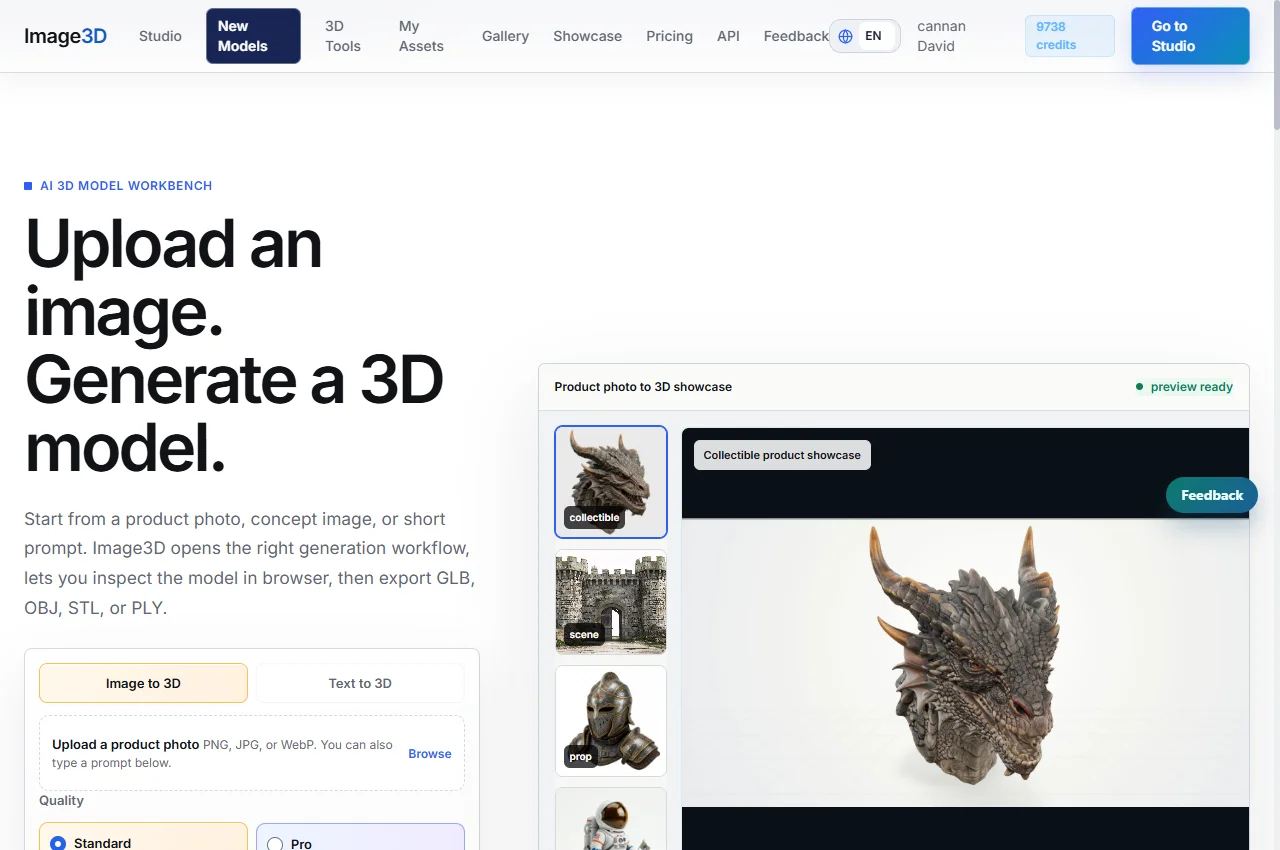
Official website preview, captured September 22, 2026. This is a website preview, not an independent product test.
Direct answer
Image3D is best for creators who need quick 3D model output from images or prompts without opening a full manual modeling workflow first. Use it when a 2D image generator is not enough and the workflow needs an actual model file. The strongest fit is early-stage 3D ideation: get a model, inspect the output, export the right format, and then refine it in a specialist 3D tool if production quality is required.
Image3D is not a replacement for a professional 3D artist, but it can reduce the blank-canvas problem for teams that need many rough 3D directions before choosing what to polish.
Real example: a helmet reference and its 3D preview
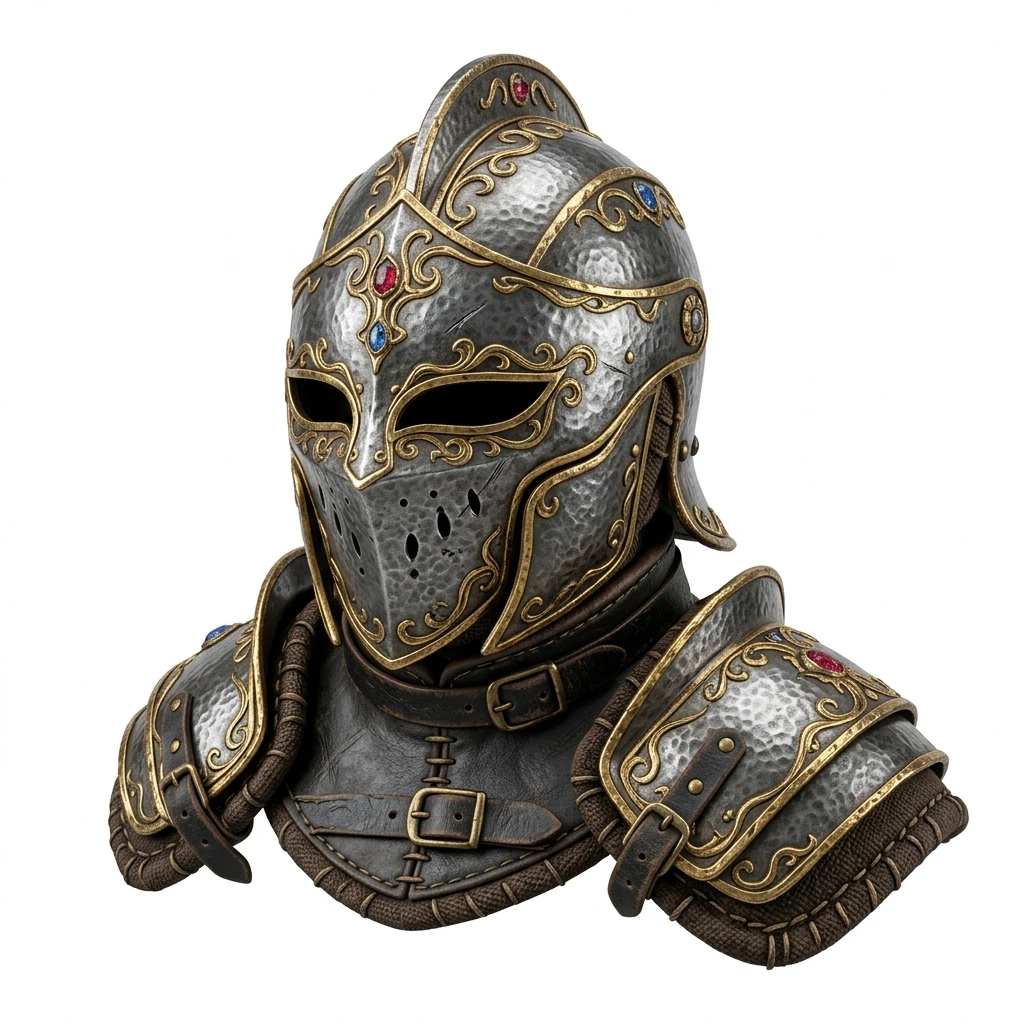
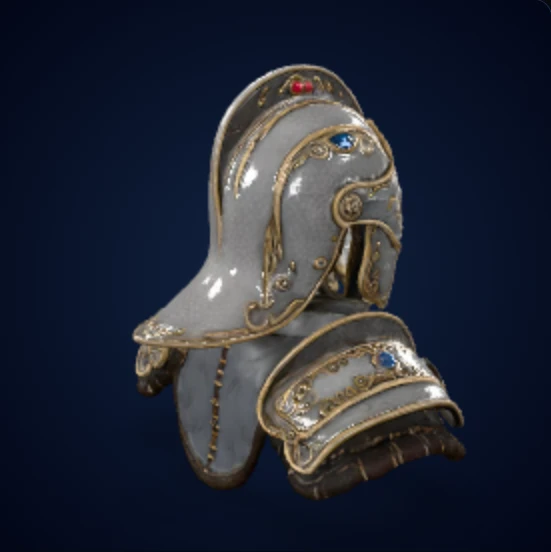
A generated 3D asset needs more scrutiny than a convincing front image. This Image3D example shows why: you can recognize the reference's general design in the preview, but must rotate and inspect the actual model before deciding what it can be used for.
Sample provenance: Image3D's existing helmet reference and saved Pro model poster, reused with common ownership disclosed. The right image is a static view of a generated model, not a manufactured object or a new test run. Different viewing angles make this an illustrative pair rather than a pixel-aligned fidelity comparison.
Input: ornate helmet and shoulder-armor referenceOutput: saved poster view of the Image3D Pro helmet model
What this pair shows—and what it cannot establish
The preview retains a helmet-like silhouette, shoulder armor, gold trim and dark metallic coloring. Small details are softer than the source image, and the side angle does not let you verify the front face or the back. Recognition of a design is useful for an early concept, but is not proof of exact geometry.
Open the interactive source showcase to inspect the model from multiple angles. A poster does not establish mesh topology, scale, watertightness, texture seams, or whether an exported asset imports correctly into your own software. No printed result is claimed for this example.
Choose the inspection by the intended use
Your next step
Check before accepting the model
Reason to reject or refine
Web or product preview
Rotate the model and inspect the silhouette and materials.
Missing surfaces or distracting artifacts appear at another angle.
Blender or game prototype
Open the exported file; inspect geometry, texture mapping and scale.
The asset needs more cleanup than the prototype budget allows.
3D printing experiment
Inspect the mesh in a slicer for walls, islands, supports and scale.
A good-looking render conceals geometry that will not print reliably.
A practical first attempt
Start with a clear, single-subject image whose silhouette you can judge. Decide whether you want an early visual draft or an export for a downstream tool.
Check the current preview and download entitlements before generating. A free preview is not automatically a free downloadable model.
Rotate the result, inspect the weak areas and then test the export in the actual destination. Do not use a marketing render as the acceptance test.
For this workflow, a successful first result is a model worth inspecting and refining. It is not a replacement for precision CAD or a guarantee of print-ready, production-ready geometry.
Image3D is strongest when the user has a visual idea and needs a usable 3D starting point quickly. It fits product mockups, game asset drafts, AR/VR concept work, printable experiments, and design exploration where speed matters more than hand-modeled perfection.
When to skip
Skip Image3D when the job requires engineering-grade CAD precision, exact manufacturing tolerances, rigged production characters, or a final asset that must pass strict topology rules without human cleanup.
Pricing note
Check the Image3D site for current plan and credit details. For evaluation, compare the cost against how many manual modeling hours it saves during early concept and asset exploration.
Decision matrix
Evaluation question
How Image3D fits
What to verify
Does it create downloadable 3D files?
Yes. The workflow is oriented around 3D model output instead of only flat images.
Confirm the current export formats and file quality for your target pipeline.
Is it good for product mockups?
Yes, especially for concept exploration and rough model direction.
Review scale, geometry quality, and cleanup needs before production use.
Is it a CAD replacement?
No. AI-generated models are not a substitute for precision engineering tools.
Use CAD or manual modeling for tolerance-sensitive parts.
Can game teams use it?
Yes, as a draft asset generator or ideation layer.
Check polygon count, texture quality, licensing, and engine import behavior.
Workflow fit
Image3D works best as the first pass in a 3D creation chain. It gives the user something visible and exportable, then the serious cleanup happens in Blender, CAD, a game engine, or a printing slicer depending on the final job.
Image-to-3D from references
A designer can start with a product photo, concept sketch, or image generator output and turn it into a 3D draft. This is useful when the team needs to inspect silhouette, volume, and spatial feel before committing to manual modeling.
Text-to-3D concept exploration
For early ideation, text prompts can generate candidate objects faster than a traditional asset workflow. The output is most useful when the goal is comparison and direction, not final-ready topology on the first attempt.
Game asset drafts
Game teams can use Image3D to create placeholder props, environmental objects, or prototype assets. The asset still needs import testing and optimization, but the team can move faster than waiting for every object to be modeled from scratch.
AR and spatial mockups
AR prototypes need real geometry, not just screenshots. Image3D can help teams get a model into a spatial scene quickly enough to test scale, placement, and user reaction before a polished asset is commissioned.
3D printing experiments
For hobby and concept printing, AI-generated models can be a useful starting point. The user still needs to check wall thickness, manifold geometry, orientation, and slicer behavior before treating an output as printable.
Evaluation checklist
Evaluate Image3D by the downstream job. A model that is good enough for a mockup may be poor for printing, and a model that looks fine in a preview may need cleanup before it works in a game engine.
Confirm which export formats are currently supported for your workflow.
Test one image-based prompt and one text-based prompt before judging fit.
Inspect geometry from multiple angles, not only the preview thumbnail.
Check whether textures, materials, and scale survive the export process.
Open the file in the downstream tool you actually use.
For game assets, check polygon count and engine import behavior.
For printing, run the file through a slicer and check manifold errors.
For product design, separate concept value from manufacturing readiness.
Document prompt and source-image settings so useful outputs can be repeated.
Implementation notes
The most reliable Image3D workflow starts with a clean source. If the reference image has confusing shadows, multiple subjects, or an extreme crop, the model is more likely to need cleanup. A plain product angle or clear concept image gives the generation step a better target.
Teams should treat the first model as a draft. The value is not that every output is final; the value is that the team can compare directions quickly. Once one direction is chosen, a human artist or technical tool can refine topology, materials, scale, and constraints.
Image3D also pairs well with AI image generators. A flat image tool can create visual directions, then Image3D can test whether the strongest direction survives as a 3D form. That makes it a natural companion to image and design tool comparison pages.
Practical examples
The strongest Image3D use cases start with a concrete downstream asset need. These examples show the difference between casual generation and a workflow that can actually save time.
Example: concept art to 3D prop
A game designer can generate a 2D prop direction, send the strongest image into Image3D, and inspect whether the object works from multiple angles. The result may still need cleanup, but the team gets a spatial draft early enough to decide whether the idea deserves manual art time.
Example: product mockup review
A founder testing a physical product idea can turn a reference image into a rough 3D object and review shape, proportions, and presentation before commissioning polished renders. This is useful when the decision is about direction rather than engineering tolerance.
Example: 3D printing experiment
A hobby user can create a model from a prompt, export it, and run it through a slicer to inspect printability. The important step is the slicer check. Image3D can create the candidate object, but the user still needs to verify walls, supports, scale, and mesh errors.
Alternatives and companion tools
Image3D belongs in the image-to-3D and text-to-3D layer. Adjacent alternatives may be better for image generation, professional 3D editing, or final asset optimization.
Leonardo AI
Use Leonardo AI when the main job is 2D concept art, textures, or image generation before a 3D step.
Blender
Use Blender when the asset needs manual modeling, rigging, material editing, or production cleanup.
CAD software
Use CAD tools when the output needs precise measurements, mechanical constraints, or manufacturing readiness.
Game engine asset stores
Use curated asset stores when licensing, topology, and engine-ready formats matter more than prompt-based generation.
Editorial disclosure
Image3D is an affiliated project from the same owner network as AI Tool Finder. It is included here because the tool directly matches image-to-3D, text-to-3D, GLB, OBJ, STL, and 3D asset workflows.
FAQ
What is Image3D best for?
Image3D is best for quickly generating 3D model drafts from images or text prompts for concept work, game prototypes, AR mockups, and printing experiments.
Can Image3D replace Blender?
No. Image3D can generate a starting model, while Blender is still the better environment for detailed cleanup, editing, rigging, and production work.
Is Image3D good for 3D printing?
It can help with printing experiments, but every model should be checked in a slicer for scale, manifold geometry, wall thickness, and printability.
Does Image3D work from images?
Yes. The core use case is converting a reference image or generated image into a 3D model starting point.
When should teams skip Image3D?
Skip it for precision CAD, strict manufacturing tolerances, or final production assets that require exact topology without manual review.
How should teams evaluate model quality?
Open exports in the downstream tool, inspect geometry from multiple angles, check materials, and test the file in the actual pipeline.